
AI has a lot of utility these days, especially those in tech; from automation to writing and supporting applications solo (like I do at work) it has become a major tool for doing work. Local AI PCs are gaining focus these days to move development closer to the developer than leaving it to subscription-based AI services.
With news about companies or freelance developers’ AI subscriptions skyrocketing due to maxing out allotted tokens for any trial/conceptual/prototyping done, it seems similar to testing on production environment. An alternative way is to take development/prototyping and training to a local (desktop/workstation) level, hence, an AI PC. It may cost at the start, but it will pay off once developmental work leads to production output.
Table of Contents
The Cost of AI Subscription vs Having Your Own
But how does an AI PC cost less than a monthly subscription? Consider this: for example, an Anthropic Claude (the best AI tool for software development) Pro plan has a $200 annual rate, and that’s on their base developer’s plan which has limitations. And programming apps using Claude does use up a lot of tokens fast. Their Max plan, which has up to 20x more token use than the Pro plan costs $100 (5x) and $200 (20x) per month. Annually that will be $1200 (converted to around Php75,600) for 5x and $2400 (converted to Php151,200) for 20x.
That’s one year of continued use, and any excess usage would be blocked until limits are reset. And for the price of a 20x Max plan, you can start with a local AI PC that runs a local AI model for coding. And if you run calculations to your budget further, that subscription will eat into your operating costs and profits in the end. That’s why leveraging a local AI Agent Computer can reduce overhead. And if you’re running a small outfit, setting up a decently sized local Agent Computer can serve multiple users.
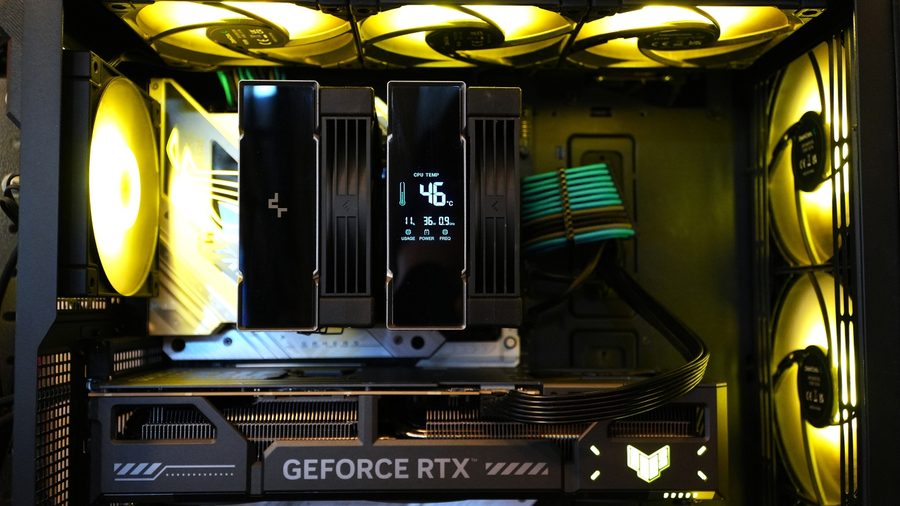
An example of a local AI Agent Computer can be broken down to the following parts:
| Intel Core i5 12600KF | Php 19,000 |
| ASUS ROG STRIX Z790A-D4 | Php 21,000 |
| Kingston Fury Beast DDR4 3600 32GB (8GBx4) | Php 8,000 |
| ADATA Legend 860 2TB PCIe Gen4 | Php 7,000 |
| ASUS TUF Gaming GeForce RTX 5070 12G OC | Php 60,000 |
| DeepCool AK620 G2 NYX Digital | Php 4,200 |
| DeepCool PX1000G 1000W PSU | Php 6,000 |
| DeepCool CH560 Digital Mid Tower ATX Case | Php 6,000 |
Note: Some parts were bought before the price hikes late 2025 around 2022 up to mid-2025, namely RAM, Storage GPU, PSU, Case and Cooler. Prices are approximate. The 32GB RAM was bought in 2022 with a total of around Php8,000 then. While I got the 2TB drive in 2024 from an Amazon Sale for around 7000 with free delivery. The RTX 5070 I got at 60,0000 during the start of the GPU price drop in 2025. Not included are my other SSD and HDD drives I have purchased years before and used as storage.
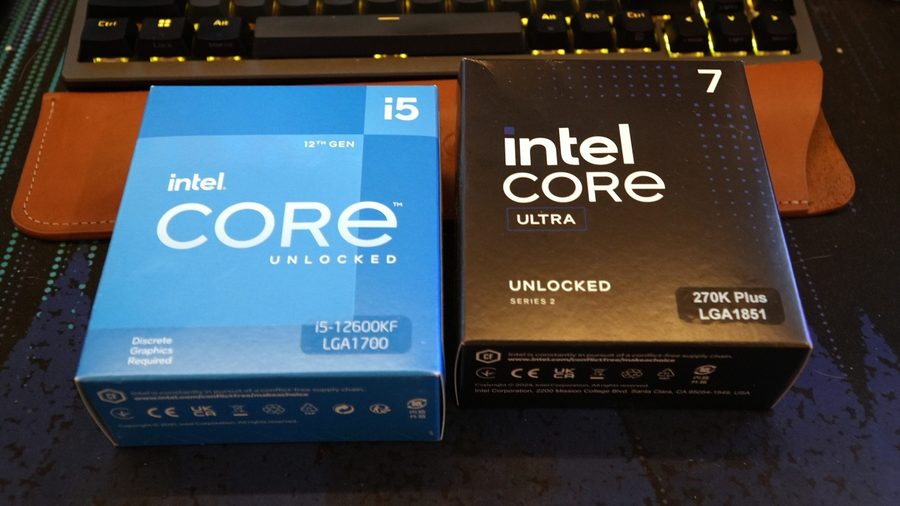
This PC setup is what I’m currently using now as my primary machine. It totals at around Php131,200 a little lower than an annual subscription. It’s a bit of an older PC, but if I swap it to a DDR5 setup, I will add an additional 18,000 (just for the RAM) to a total of Php 149,200. Say that what about the motherboard and CPU? In that case, swapping it to an Intel Core Ultra 7 270k netted me around Php21,000 and the board, a TUF Gaming Z890Plus at around Php19,000, which is just flipping the prices around.
So where do we start? In this series of articles on Local AI PC, I’ll try to give as much information as possible on the hardware, and the setup for your own Local AI PC or what ASUS dubs as an AI Agent Computer based on what information I have come across in my experience.
What do You Want to Build?
I have given an example of a PC build that fits the description of a basic Local AI PC. I know it’s a bit old (except for the GPU), but I do have the new CPU, motherboard and DDR5 lying around for an upgrade. And if you’re looking for a brand-new build here are things to consider when building one, would it be a regular desktop like what I have (Consumer/Prosumer/SMB) or something bigger, with more power like a server (Enterprise Grade)?
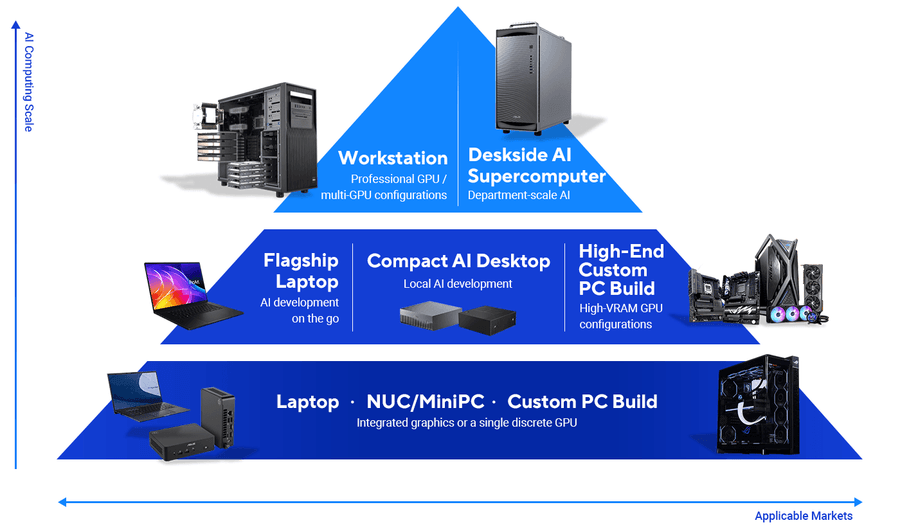
Consumer/Prosumer/SMB Grade Desktop/Workstation
Each of these would split into a kind of AI Model we’d be using. For example, in the Review I made for the Radeon AI PRO R9700, I used Qwen 3 Coder:30B for development and Qwen 3.5:4B for my chat Agent. The values of 30B and 4B are parameter size in billions, and they tie with the VRAM size the AI PC will need to have. In this case having 32GB of memory and at least 12 to 16GB of VRAM will be the minimum size. AI models consume graphics card’s VRAM first before hitting the system RAM. We can stretch VRAM using 32GB with some specific graphic card choices.
But if you’re serious about development and looking to use 70B models and up or developing your own Agent; this would mean building a hybrid machine, close to an Enterprise grade machine but with a suggested 128GB minimum. While setting up a networked lab used for small agentic automation will move into having 256GB of RAM. This setup now requires two or more graphics cards to be installed to get somewhere between 32GB to 128GB of VRAM.
Enterprise Grade Workstation
Enterprise AI Development is on a different scale using very dense AI Models (70B and up) and having the capability of multiple users accessing the workstation, this utilizes memory incredibly with a minimum of 2TB of memory to be shared by multiple users. Multiple enterprise graphics cards is mandatory, as more users concurrently using the workstation will provide strain on the available VRAM which starts at 96GB. This builds up on the Workstation build by using denser (higher capacity RDIMM modules) along with Graphics cards with more than 32GB VRAM, and utilizing all PCIe slots of the workstation motherboard to maximum use.
Building a Custom AI PC Instead
There are different varieties of AI PCs available for us to use immediately or build. And they have different AI workload performance based on their hardware. Take for example the ASUS NUCs I have reviewed for the past few years. These compact PCs sport the newer Intel Core Ultra CPUs that integrate Neural Processing Units (NPU) alongside Intel Arc Graphics for AI loads.
An NPU is good if AI workload demanded is not big, or that AI models used involved lower parameter needs. NUCs or mini-PCs are also constrained by the CPU and RAM given that some have soldered memory (and non-upgradable CPU). There are of course specialized Mini-PCs like NVIDIA DGX and the new NVIDIA RTX Spark NUCs, which have large installed memory, but these are for a different discussion.
There are also prebuilt workstations and desktop PCs available should you choose not to build your own. These remove the factor of having your choice of parts, all of which are pre-chosen from the factory. But where’s the fun of building your own machine? For this series, let ASUS and I cover building a custom AI PC. I’ve split the parts into their segments and discuss options and how we build up a new AI PC.
Memory Choice Sets How Far the Build Goes
Importance of Memory
Memory is an important part of any AI PC, while graphics card VRAM hold primary importance to any AI Workload as AI loads its ‘thinking’ on the GPU’s VRAM (More on GPU VRAM importance in the GPU section). System memory loads any apps, virtual machines and the AI model into itself, stores any context of its task, and handles any excess load the GPU could not handle, hence the need for a bigger size.
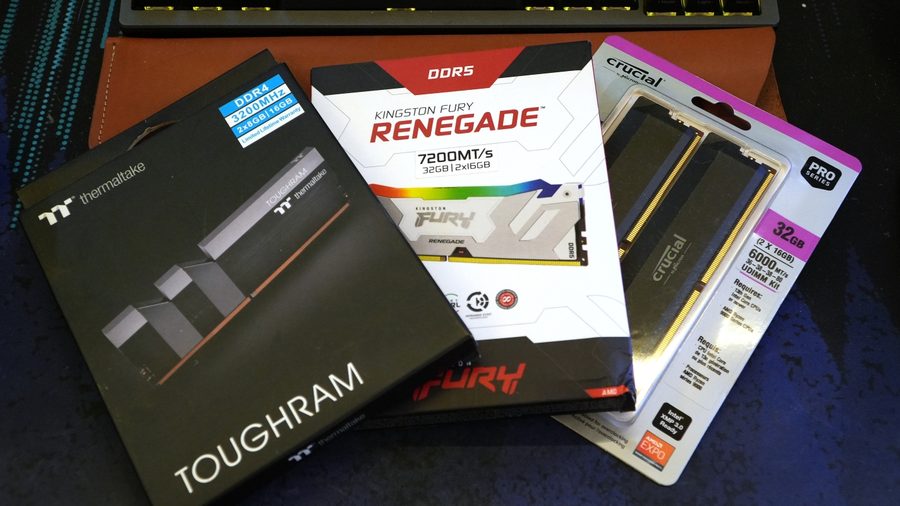
Memory Size and Generation
ASUS recommends a Personal AI machine to have a minimum of 32GB and up to 64GB for its maximum. You can have a PC that still runs on DDR4 32GB memory for this if you’re starting from an existing build. Given how RAM market demand is very high, you can try building one using four 8GB modules or 2 16GB modules and scale up as soon as possible. While 64GB for DDR4 is still possible, going for 128GB will be met with some challenge due to limited stock.
But to be future proofed and scale up further, you can opt to go with DDR5 memory and start with 32GB with two 16GB modules. It may be expensive now as everyone who is into AI is buying up memory in bulk.
Alternately, if you’re going for very large system memory size in the size of terabytes, then you may investigate building a workstation with RDIMMs having denser memory modules having 128GB of memory per module.
Memory Type (UDIMM vs RDIMM)
There’s another aspect regarding memory to decide, as it also influences the type of motherboard (and CPU). UDIMMS and RDIMMS. UDIMMS are unbuffered DIMMS, which are the typical memory we would buy from a store and supported by majority of consumer-grade motherboards in the market. Now, RDIMMS are registered DIMMs made for Workstations and Servers, these are very dense (having large sized memory per module).
CPU Supporting Local AI Workload
CPUs used to be the primary computation element of any PC, but with Graphics/Video Cards having more multiple processing power thanks to the possibility of having multiple compute cores crammed into a chip, CPUs have taken a back seat in AI. But worry not, CPUs still play a role in an AI PC. CPUs work as a controller for coordinating and taking some load from the GPU into the system’s main memory if the GPU’s VRAM is full.
And in some cases, depending on the inference server used, for example llama.cpp; we can configure to have it run AI loads using the CPU if it can handle basic loads. There’s still some utility for the good old CPU.
Having a higher tier CPU also provides support for multiple PCIe lanes that is detrimental for supporting multi-GPU setups as well. Hence workstations or custom PC builds can utilize either AMD Threadripper or Intel Xeon CPUs on top of mainstream Ryzen or Core Ultra CPUs. The choice of RAM previously will drive the choice of CPU and motherboard, as desktop and workstation builds tend to have very different sizes.
Motherboard Selection: Go Big or Go Small?
Once you’ve chosen which type of memory (UDIMM/RDIMM) and that influenced the choice of desktop or workstation CPU, comes the choices for motherboards. ASUS has a line of motherboards examples are: Prime, ROG Strix, ROG Crosshair, ROG Maximus, ProArt and TUF Gaming line for consumer and Pro Sage WS series for workstations. And both desktop and workstation motherboards have an option for AMD or Intel CPUs.
Memory+CPU-> Motherboard Choice
As an example, I currently run an Intel desktop build using the Z790 chipset (ROG Strix Z790A-D4 WiFi) with 32GB of RAM on an Intel Core i5 12600KF. This is a combination of the ideas discussed before on an existing build. Now as I’m also building my own personal AI Agent Computer my choices went for: a 32GB DDR5 RAM expandable to 64GB later, still on an Intel CPU but this time the latest Core Ultra 7 270K+ which has an NPU. To save a little on cost I went for the TUF Gaming Z890 Plus for its build and stable power delivery. What were the other factors for this selection? Let’s break it down.
Motherboard PCIe x16 Slot Count
Another aspect to look for with motherboards is GPU support. If you are looking to maximize a build by having two GPUs for local AI, getting a motherboard with dual x16 slots is great for this purpose. It not only expands available GPU memory, running dual graphics cards adds a little bit more to the overall performance when running AI workloads. While having a large system RAM helps in running AI workloads, as mentioned before, the graphic cards’ VRAM would be utilized first before loading any work onto the system RAM. Having bigger VRAM lets AI workloads complete faster.
Though the speed of the second PCIe x16 slot will dictate the actual performance boost. Also, additional consideration on what desktop chassis to pick up later, as some x16 slot can be found right at the bottom section of the motherboard.
AMD Threadripper and Intel Xeon motherboards sport multiple PCIe x 16 slots, all which interface with the Threadripper or Xeon CPU, making for a very efficient and effective way for multiple GPUs to communicate easily with one another for AI workloads. The CPUs have a complex architecture. Not only do they have a great deal more cores than the consumer variant, but they support way more lanes for PCIe, and Memory Channels, hence their bigger size… and the need for an ever-bigger motherboard.
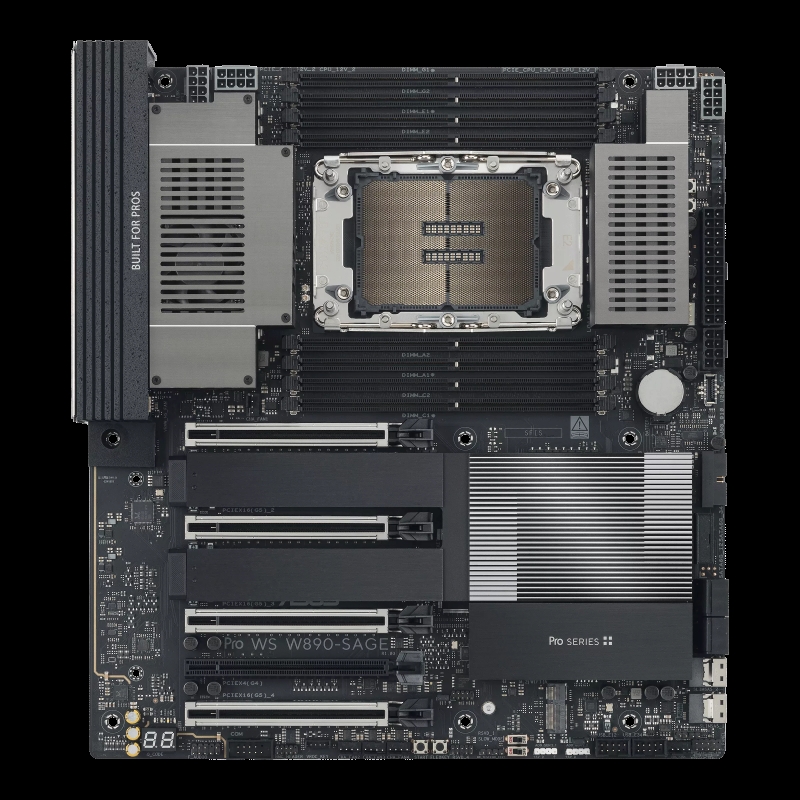
Unlike AMD Threadripper/Intel Xeon ASUS Pro Sage motherboards, consumer level motherboards come with fewer PCIe x16 slots. With the extra PCIe x16 slot running with an older PCIe generation, and lower multiplier, like x4 instead of x16 operating. It’s a limitation set by the CPU design and chipset design. While you can leverage the extra VRAM from the second GPU, there would be some performance loss coming from the second GPU on the slower slot. It’s a compromise for price with performance that server grade CPUs and motherboards carry.
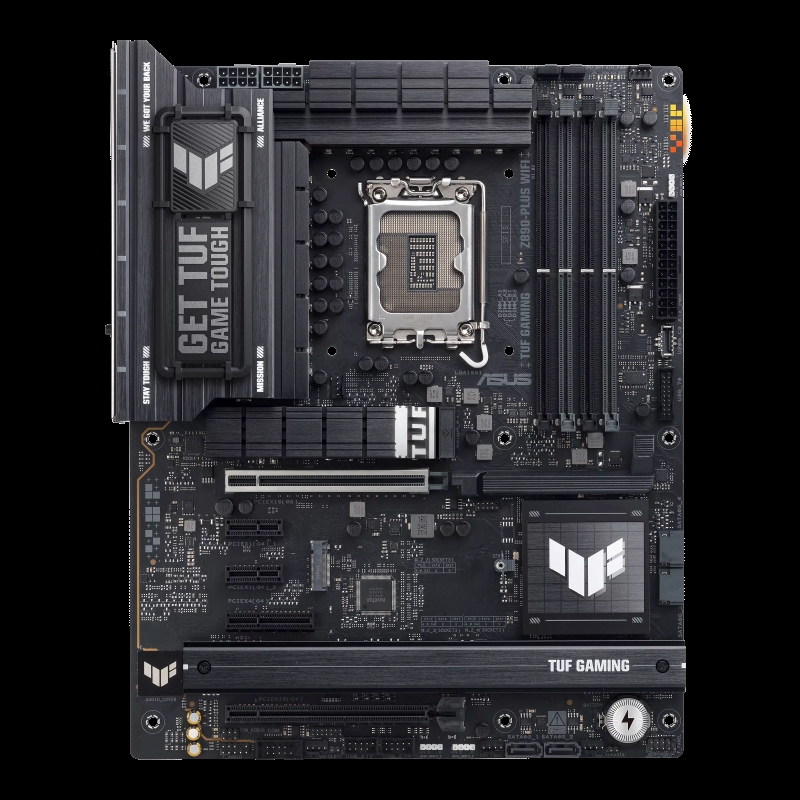
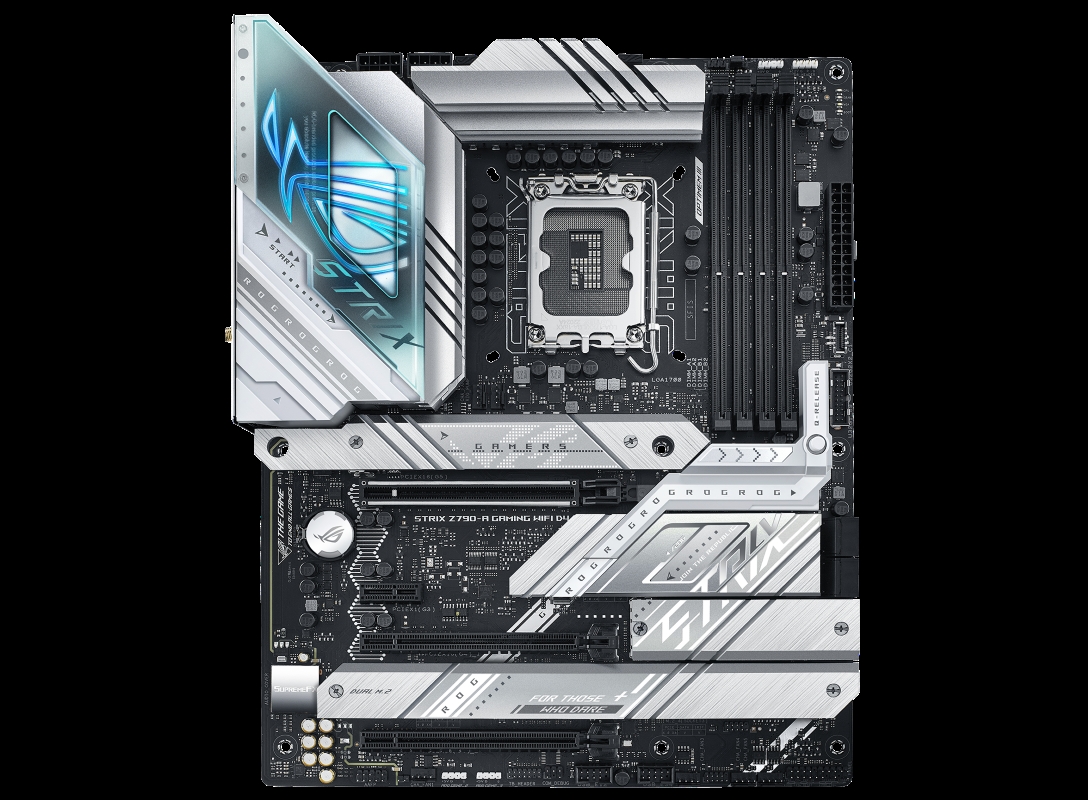
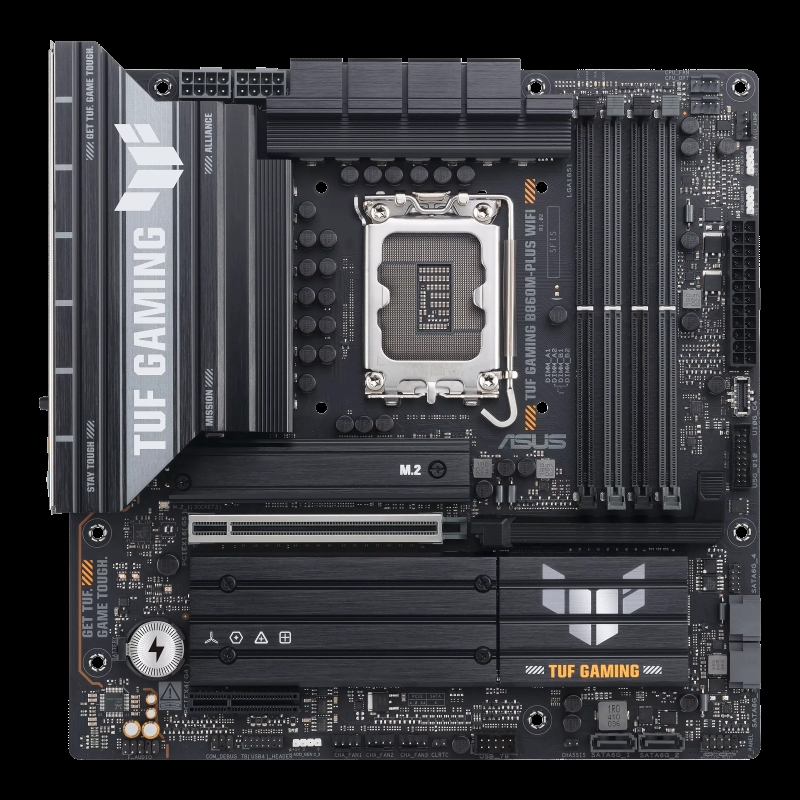
But if you’re happy with a single GPU slot, you can also opt for other mATX or ITX motherboard to build your AI PC. These can offer smaller AI PCs (and also some savings too).
Summary of Memory, CPU and Motherboard
This sums up the first part of this series of articles on building your own AI PC. It’s a tad bit longer than your typical Gaming PC or everyday use PC build as I’m diving into two major variants (desktop and workstation). For the next part, I’ll continue with GPUs, storage, power and enclosure to finish up the hardware segment and talk about the potential software for setting up an AI Agent Computer.